
Lotus365 APP: Download for Android & iOS

This page contains the current Lotus365 Android download details, installation instructions, update steps and solutions for common errors. The latest release is version 5.3, with a download size of approximately 18 MB and support for Android 5.0 or later. Check that your device meets these requirements, then use the download link below the version table to start the installation.
Lotus365 app

Lotus365 APK Latest Version

DetailCurrent information
Version5.3
ReleaseJuly 2026
Download sizeApproximately 18 MB
Minimum Android versionAndroid 5.0
Recommended free storageAt least 50 MB
Installation methodDirect Android installation
Update methodManual installation
Download priceFree
iPhone and iPad accessSafari
SupportLive chat and email

The Android download link appears directly below the technical information on this page.

The stated size is approximate. Minor differences can result from packaging or server changes. A download that is substantially larger or smaller should be checked before it is opened.

How to Download and Install Lotus365 on Android

Open this page in a standard Android browser such as Chrome or Firefox. Before downloading, confirm that the page shows version 5.3 and that the phone runs Android 5.0 or later.

After installation, you can sign in with your existing account and access our betting section, live markets and other supported products from the Android interface.

To complete the installation:

  1. Start the download from the link below the version information.
  2. Keep the browser open until the transfer finishes.
  3. Open the completed download from the browser notification or Downloads folder.
  4. Select Settings if Android blocks the installer.
  5. Allow installations from the browser or file manager currently in use.
  6. Return to the installation screen.
  7. Review the information displayed by Android.
  8. Select Install.
  9. Open Lotus365 after the installation finishes.
  10. Sign in with the existing Lotus365 account details.

If the transfer stops before completion, delete the incomplete download and start again. A partial package may produce an installation error.

The app should be downloaded from the same website used to access the Lotus365 account. Downloads shared through private messages, advertisements, third-party catalogues or file-hosting services cannot be verified from this page.
Lotus365 android app

Installation Permissions

Recent Android versions grant installation permission to a specific browser or file manager. There may be no single system-wide Unknown sources switch.

The relevant setting is usually found under:

  • Install unknown apps
  • Special app access
  • Security
  • Privacy
  • Application permissions

Grant permission only to the browser or file manager opening the installer. The permission can be disabled again after installation.

Android may request internet access, notifications and local storage used for downloads or updates. Camera access may appear during an identity-verification process.

Stop the installation when the app:

  • shows an unrelated name or developer;
  • attempts to install another application;
  • requests accessibility or administrator access without an explanation;
  • opens a login form on an unrelated domain;
  • asks for remote access to the phone;
  • requests payment before the account can be opened.

Contacts, call history and microphone access are not normally required for downloading, installing or signing in.

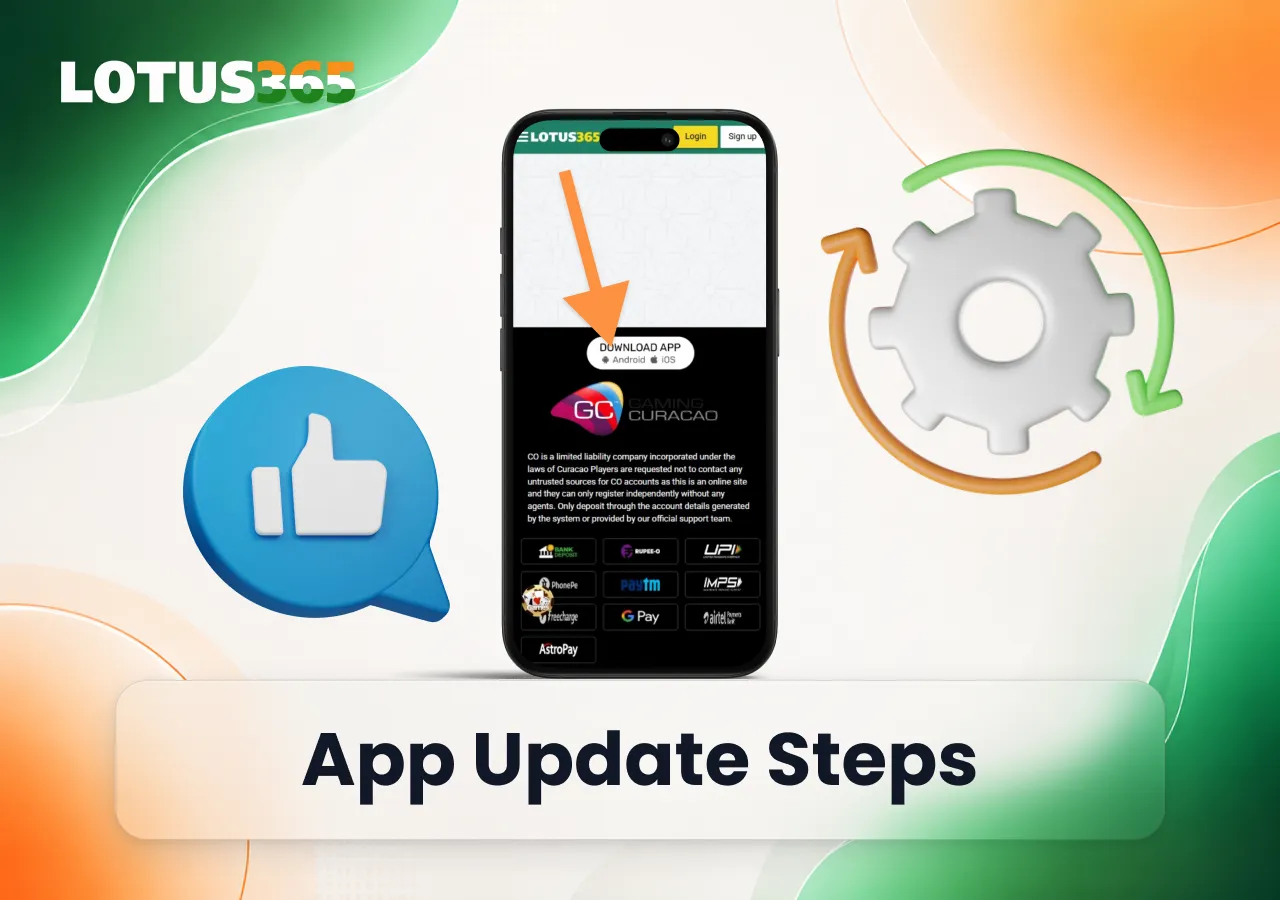
How to Update the Lotus365 App

A directly installed Android app may not update automatically.

Check the installed version in the app settings or under Android Settings → Apps → Lotus365. You can compare it with the current release published on the Lotus365 website

The update should preserve the account connection. Balances, account records and current activity are linked to the Lotus365 ID rather than to one installation.

Keep the account password available before updating. A saved session can expire after an app update or phone restart.

If Android reports that the update cannot be installed, the current app may have a different digital signature. This can happen when an earlier version was downloaded from another source. Record the account details before removing the existing installation.

Lotus365 download instruction

Support for Older Android Devices

Version 5.3 requires Android 5.0 or later. Phones running an older operating system may reject the installation or close the app after launch.

Installing an archived build is not recommended. An older version may lack current login, compatibility or payment changes. A package carrying the Lotus365 name may also connect to a different account service.

When the device does not support version 5.3:

  • check whether the manufacturer provides an Android update;
  • free additional storage and repeat the installation;
  • use the Lotus365 mobile website;
  • contact support with the phone model and Android version.

Android needs more storage than the stated download size. Temporary files are created while the package is unpacked, so at least 50 MB of free space is recommended.

Lotus365 android app

How to Verify the Lotus365 APK

Check the download source before opening the installer.

The following information should agree with the details published on this page:

  • version 5.3;
  • release period July 2026;
  • size close to 18 MB;
  • Android 5.0 or later;
  • download started from the Lotus365 page;
  • login remains within the same website and account service.

Keep Google Play Protect enabled. A warning from Android or Play Protect should be investigated rather than bypassed automatically.

Delete the download when:

  • its source cannot be traced;
  • its size differs substantially from the published value;
  • Android displays another application name;
  • the installer attempts to add extra software;
  • the app requests unrelated system access;
  • the login redirects to a different website;
  • an OTP is requested outside the normal account flow.

The application name alone does not confirm that a package is genuine.

Lotus365 Access on iPhone and iPad

An Android package cannot be installed on an iPhone or iPad.

Lotus365 is accessed on iOS through Safari. There is currently no separate Lotus365 application in the Apple App Store.

To add the mobile website to the home screen:

  1. Open Lotus365 in Safari.
  2. Open the Share menu.
  3. Select Add to Home Screen.
  4. Check the page name and address.
  5. Confirm the shortcut.
  6. Open the new icon.
  7. Sign in with the existing Lotus365 ID.

The shortcut opens the website in an app-style window. It remains browser access and receives updates through the website.

An Android package, enterprise certificate or configuration profile is not required for this method.

Lotus365 for iphone and ipad

App or Mobile Browser

The Android app and mobile website use the same Lotus365 account, but they are maintained differently.

The same account also connects you to the Lotus365 Exchange, where supported sports events can be opened through the mobile interface without creating another profile.

Lotus365 app and browser version
FeatureAndroid appMobile browser
InstallationRequiredNot required
Minimum systemAndroid 5.0Current supported browser
UpdatesManual installationApplied on the website
StorageUses app storageUses browser cache
Home-screen accessInstalled iconBrowser shortcut
AccountExisting Lotus365 IDExisting Lotus365 ID
iPhone and iPadNot supportedSafari access
Access during app errorsUnavailableAvailable

The browser can be used when installation is blocked, the phone does not meet the Android requirement or account access is needed while an app problem is being investigated.

Signing In to Lotus365

Use the same username, mobile number or Lotus365 ID used on the website.

Enter the existing account identifier and password, then complete OTP verification when it appears in the normal login process. After signing in on a new phone, check the account name, balance and recent activity.

Changing phones, reinstalling the app or updating to version 5.3 does not require a new registration.

An OTP, password, card PIN or banking password should not be given to anyone claiming to complete the login on the account holder’s behalf.

Lotus365 sign in

Password and Account Recovery

Use the recovery option on the Lotus365 login page when the password is unavailable.

Contact support when:

  • the recovery code does not arrive;
  • the registered phone number is no longer accessible;
  • the registered email address cannot be opened;
  • the account is shown as locked or inactive;
  • an unfamiliar login appears;
  • the password was changed without permission.

Support can begin an account review without asking for the current password or OTP.

Lotus365 account recovery

Lotus365 App Installation Problems

Installation problems can occur because of an incomplete download, insufficient storage, blocked permissions, an unsupported Android version or a conflict with an older app build. The checks below explain how to identify the cause and complete the installation safely.

Use the same Lotus365 website for every new download or update. Do not create another account or install files from third-party sources while resolving an app error.

Lotus365 installation problem

The Download Does Not Finish

Check the internet connection, available storage and browser download permission.

A page opened inside a messaging or social media application may not handle the transfer correctly. Open the page in Chrome, Firefox or another standard browser.

Delete any incomplete download before repeating the process.

Android Shows “App Not Installed”

This message commonly appears when:

  • the download is incomplete or damaged;
  • the phone has insufficient free storage;
  • Android is older than version 5.0;
  • installation permission is disabled;
  • another installed build uses a different signature.

Check these conditions before downloading the package again.

If the existing app must be removed, make sure the account ID and password are available first.

Installation Permission Is Blocked

Allow installation only for the browser or file manager used to open the package.

If the option is unavailable, the device may be controlled by:

  • parental restrictions;
  • a work profile;
  • administrator settings;
  • manufacturer security controls.

Do not grant installation access to messaging or social media applications.

The Installed Version Has Not Changed

Close Lotus365 and check the version through Android settings.

Restart the phone when version 5.3 is not shown after installation. A continuing mismatch can mean that the previous build was not replaced or that another download was opened.

Do not create a second account or install several copies of the app to correct a version mismatch.

The App Keeps Requesting an Update

Delete any incomplete update downloads, restart the phone and check the version in Android settings.

When version 5.3 is already installed, record the update message and report it to support with the phone model and Android version.

The App Closes After Launch

Confirm that the phone runs Android 5.0 or later and that enough storage remains after installation.

Restart the phone and clear only the application cache. Do not clear application data unless the account details are available.

Use the mobile website if the problem continues.

The App Remains on the Loading Screen

Open the Lotus365 mobile website in the same browser.

If the website works, close the app fully and switch between Wi-Fi and mobile data. If neither the website nor the app loads, the issue may involve the connection or a temporary service interruption.

Reinstalling the app is not necessary when the same problem affects the website.

The Password Is Rejected

Check uppercase and lowercase letters, spaces and stored-password entries.

Use password recovery instead of repeatedly submitting the same password. Multiple failed attempts can temporarily lock the account.

Contact support when the account is shown as inactive or when the registered recovery method is unavailable.

Lotus365 App Support

Installation, update and login problems can be reported through:

A technical report should include:

  • Lotus365 ID or registered contact detail;
  • phone manufacturer and model;
  • Android or iOS version;
  • installed Lotus365 version;
  • exact error message;
  • time the problem occurred;
  • screenshot, when it does not reveal private information.

Do not send a password, OTP, card PIN, complete payment credentials or remote-access details.

Questions About the Lotus365 APK

  • Why Does Installation Require Extra Storage?
    The download is approximately 18 MB, but Android creates temporary files while unpacking and installing it. Installation can therefore fail even when the phone has enough space for the original download.
  • Does the App Work on Android Tablets?
    The app can be installed on a tablet running Android 5.0 or later. Compatibility may also depend on the manufacturer and system configuration.
    Use the mobile website when Android reports that the tablet is unsupported.
  • Can the App and Website Use the Same Account?
    Yes. The Android app and mobile website connect to the same Lotus365 ID.
    A security check may appear when the account is opened from a new device or browser.
  • Can Two Versions Be Installed on One Phone?
    Android normally replaces an earlier compatible version.
    A second installation may be rejected when the packages use the same application identity or different digital signatures. Installing another copy is not a reliable way to resolve an update problem.
  • Will Uninstalling the App Delete the Account?
    No. Uninstalling removes the app and its local data from the phone. The Lotus365 account remains linked to the registered ID.
    The password or account-recovery method may be needed to sign in again.
  • What Information Should I Send to Support?
    For a version or installation problem, send:
    – the version published on this page;
    – the version shown in Android settings;
    – the phone model;
    – the Android release;
    – the exact error;
    – a screenshot of the mismatch.
    Passwords and OTP codes should not be included.